

La vraie localisation va au-delà des mots ; elle exige alignement visuel avec les normes typographiques locales. Une police qui a fière allure en anglais (script latin) peut mal s'afficher en hindi (devanagari) ou en arabe. MultiLipi vous permet d'injecter des polices spécifiques Google Fonts pour des langues spécifiquesen s'assurant que vos pages traduites semblent natives et dignes de confiance.
Ce guide détaille le protocole exact pour récupérant les ressources de polices de Google et leur configuration dans votre centre de commande MultiLipi.
1. Préparation des ressources (Google Fonts)
Avant de configurer le tableau de bord, vous devez générer le point de terminaison de police correct à partir de Google.
Sélectionner la famille de polices :
- •Accédez à Polices Google.
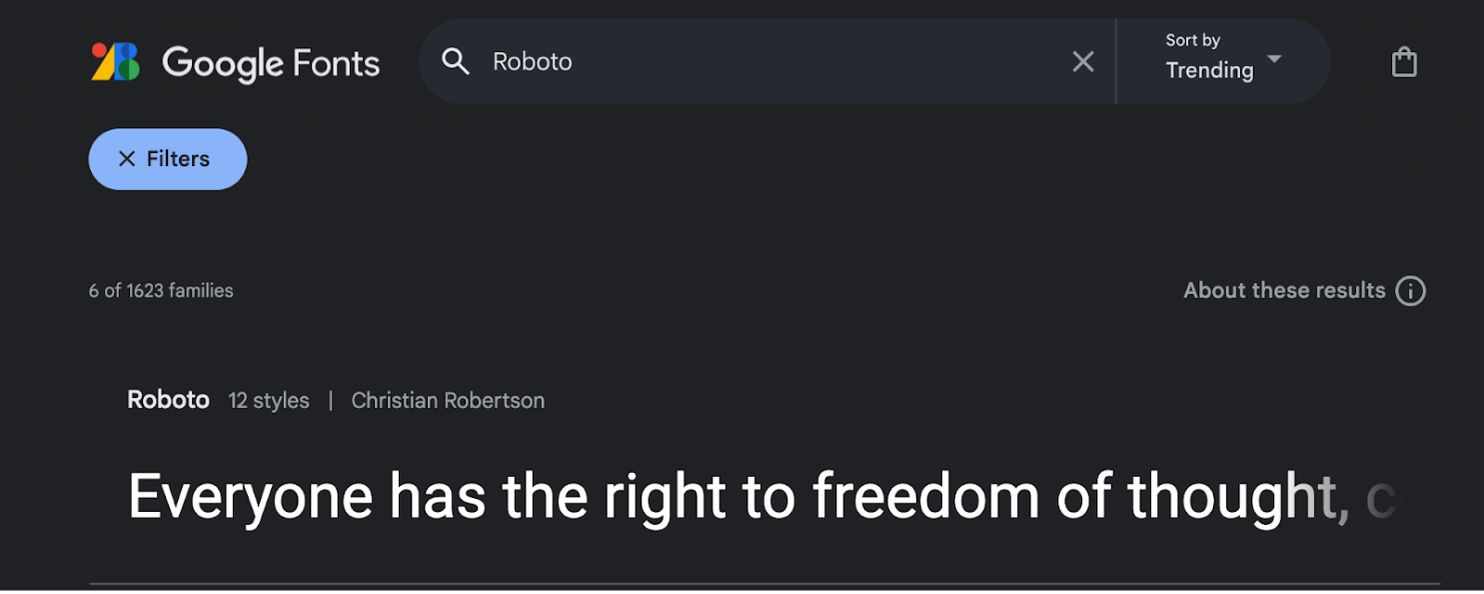
- •Recherchez votre police souhaitée (par exemple,
"Roboto"ou"Baloo 2"). - •Cliquez sur la carte de police pour ouvrir ses détails.
Sélectionner les styles :
- •Cliquez sur l’icône "Obtenir la police" dans le coin supérieur droit.
- •Sur la page de configuration, cliquez sur "Obtenir le code d'intégration".
Générer le lien d'importation :
- •Dans le panneau de gauche, sélectionnez les poids/styles spécifiques dont vous avez besoin (par exemple,
Normal 400,Gras 700). - •Étape cruciale : Dans le panneau de droite, sélectionnez "Web" et assurez-vous de cliquer
"@import"(au lieu de "link"). - •Copiez l'URL générée dans le bloc de code.
2. Configuration de l'infrastructure
Une fois que vous avez votre lien d'actif, injectez-le dans le moteur de traduction.
Accéder aux paramètres de langue :
- •Connectez-vous à votre panneau d'administration MultiLipi.
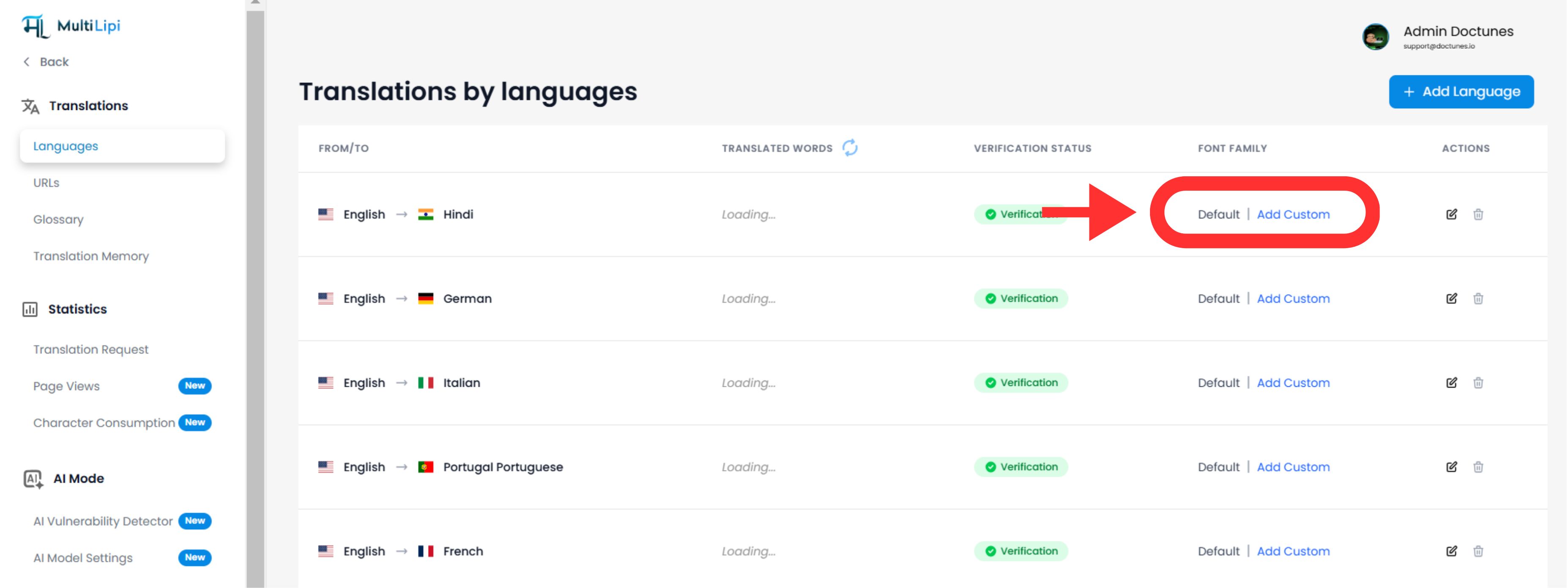
- •Dans la barre latérale gauche, cliquez sur Traduction en vertu de la Traductions section.
Lancer l'injection de police :
- •Localisez la ligne de langue spécifique que vous souhaitez modifier (par exemple, Hindi).
- •Cliquez sur l’icône
"Ajouter la police"bouton à côté de cette langue.
Déployer l'Atout :
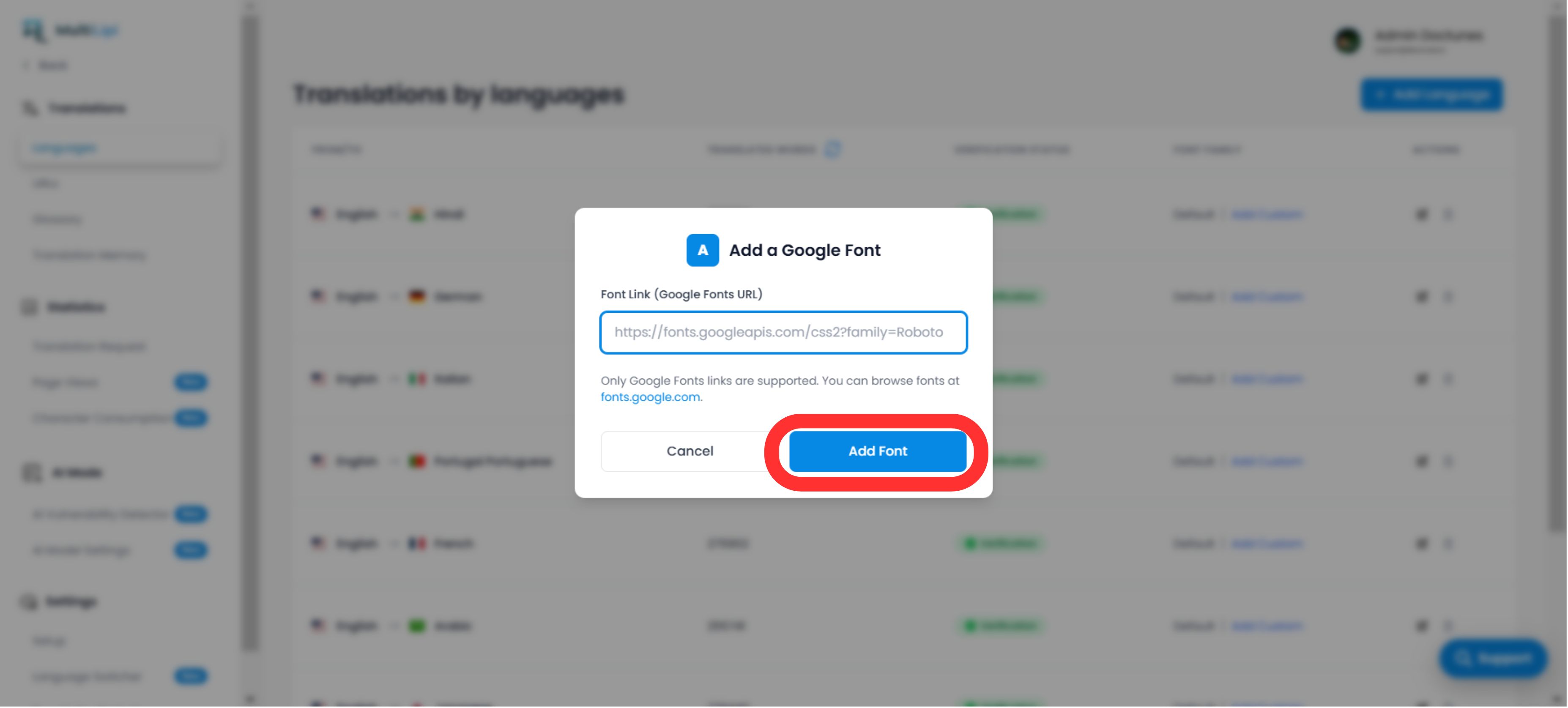
- •Une fenêtre contextuelle apparaîtra.
- •Coller : Insérez l'URL de Google Font que vous avez copiée à l'étape 1.
- •Exécuter : Cliquer
Envoyer.
3. Validation et rendu
Déploiement immédiat :
Une fois soumis, la police est appliqué automatiquement à cette version linguistique spécifique de votre site. Aucun CSS ni aucune modification manuelle du code n'est requis.
Remplacement par défaut :
Si aucune police personnalisée n'est ajoutée pour une langue, le système continuera à afficher le famille de polices par défaut.
Note technique :
- •Assurez-vous de coller une URL Google Fonts valide.
- •Le système applique cette police uniquement à la langue cible, en préservant votre design original pour la langue source.