

Une véritable localisation va au-delà des mots ; elle exige alignement visuel avec les normes typographiques locales. Une police qui a fière allure en anglais (script latin) peut mal s'afficher en hindi (devanagari) ou en arabe. MultiLipi vous permet d'injecter des polices spécifiques Polices Google pour des langues spécifiques, en veillant à ce que vos pages traduites paraissent natives et dignes de confiance.
Ce guide détaille le protocole exact pour récupération des polices depuis Google et en les configurant dans votre centre de commande MultiLipi.
1. Préparation des actifs (Google Fonts)
Avant de configurer le tableau de bord, vous devez générer le point de terminaison de police correct depuis Google.
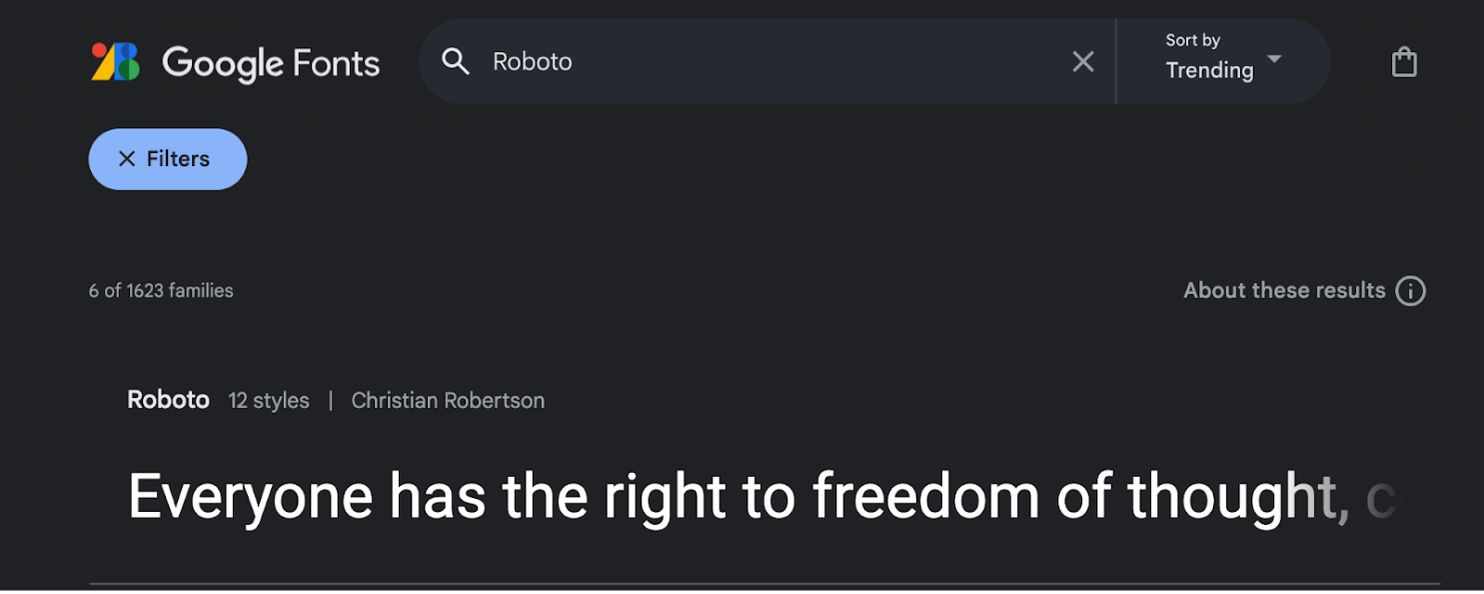
Sélectionner la famille de polices :
- •Naviguer vers Google Fonts.
- •Recherchez la police de caractères souhaitée (par exemple,
"Roboto"ou"Baloo 2"). - •Cliquez sur la carte de police pour ouvrir ses détails.
Sélectionner les styles :
- •Cliquez sur le "Obtenir la police" bouton dans le coin supérieur droit.
- •Sur la page de configuration, cliquez sur "Obtenir le code d'intégration".
Générer le lien d'importation :
- •Dans le panneau de gauche, sélectionnez les graisses/styles spécifiques dont vous avez besoin (par exemple,
Normal 400,Gras 700). - •Étape cruciale : Dans le panneau de droite, sélectionnez "Web" et assurez-vous de cliquer sur
"@import"(au lieu de « lien »). - •Copiez l'URL générée dans le bloc de code.
2. Configuration de l'infrastructure
Une fois que vous avez votre lien d'asset, injectez-le dans le moteur de traduction.
Accéder aux paramètres de langue :
- •Connectez-vous à votre panneau d'administration MultiLipi.
- •Dans la barre latérale gauche, cliquez sur Langues sous le Traductions section.
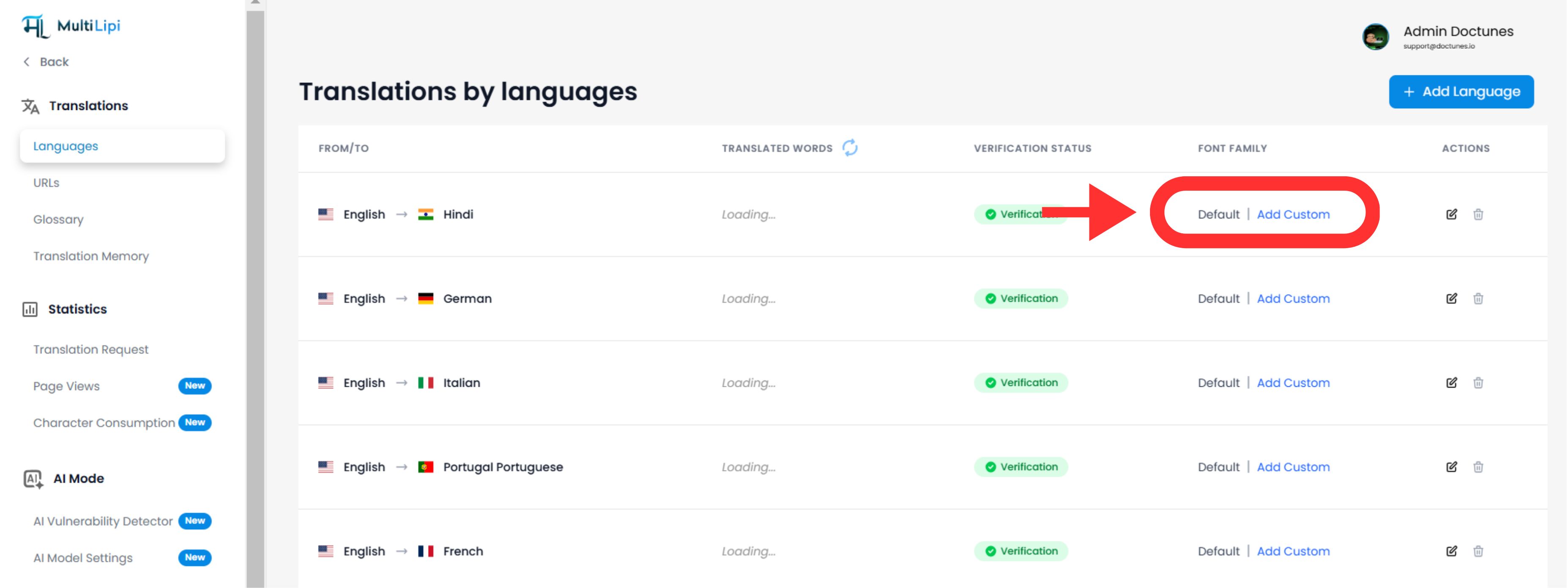
Initier l'injection de polices :
- •Localisez la ligne de langue spécifique que vous souhaitez modifier (par exemple, Hindi).
- •Cliquez sur le
"Ajouter une police"bouton à côté de cette langue.
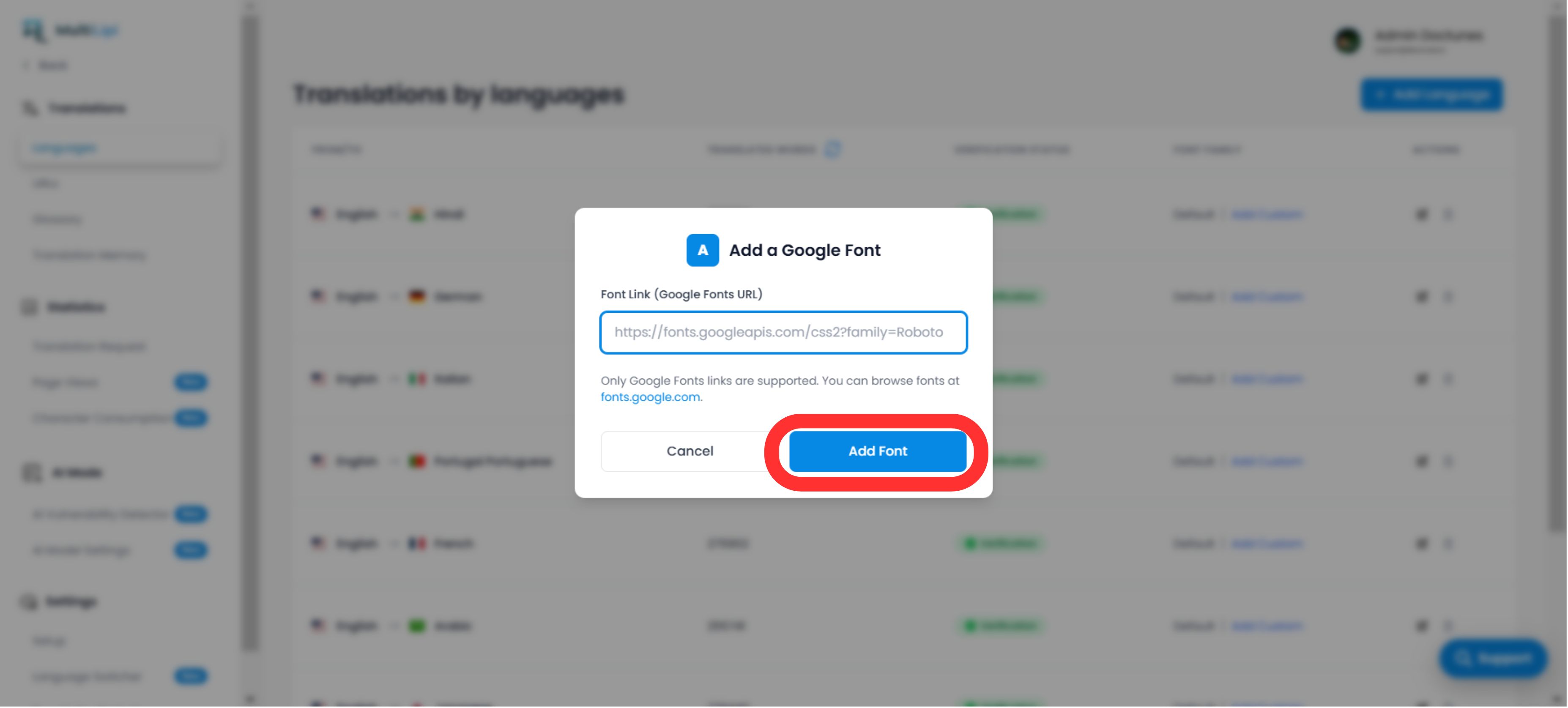
Déployer l'asset :
- •Une fenêtre modale apparaîtra.
- •Coller : Insérez l'URL de police Google que vous avez copiée à l'étape 1.
- •Exécuter : Cliquer
Soumettre.
3. Validation et rendu
Déploiement immédiat :
Une fois soumise, la police est appliqué automatiquement à cette version linguistique spécifique de votre site. Aucun CSS ni modification manuelle du code n'est requis.
Rétrogradation par défaut :
Si aucune police personnalisée n'est ajoutée pour une langue, le système continuera à afficher la famille de polices par défaut.
Note technique :
- •Assurez-vous de coller une URL valide de Google Fonts.
- •Le système applique cette police uniquement à la langue cible, préservant votre conception originale pour la langue source.