
Les modèles de traduction IA sont puissants, mais ils peuvent être trop créatifs. Un glossaire agit comme une "Couche de garde" obligeant le moteur de traduction à respecter vos règles de marque spécifiques. Que ce soit pour garantir "Apple" reste un nom de marque (et non un fruit) ou en conservant les clauses de non-responsabilité légales mot pour mot, le Gestionnaire de glossaire MultiLipi vous donne un contrôle absolu.
Ce guide couvre les deux méthodes de définition de ces règles : Saisie Manuelle (Précision) et Ingestion CSV (en masse).
Appliquer une cohérence terminologique stricte
Les glossaires remplacent les décisions de traduction de l'IA pour maintenir l'intégrité de la marque. Utilisez-les pour les noms d'entreprise, les références de produits, les termes juridiques, le jargon technique et les mots-clés SEO de grande valeur qui doivent rester cohérents dans toutes les langues.
Accéder à la base terminologique
Le Glossaire est un paramètre global qui s'applique à tous vos projets.
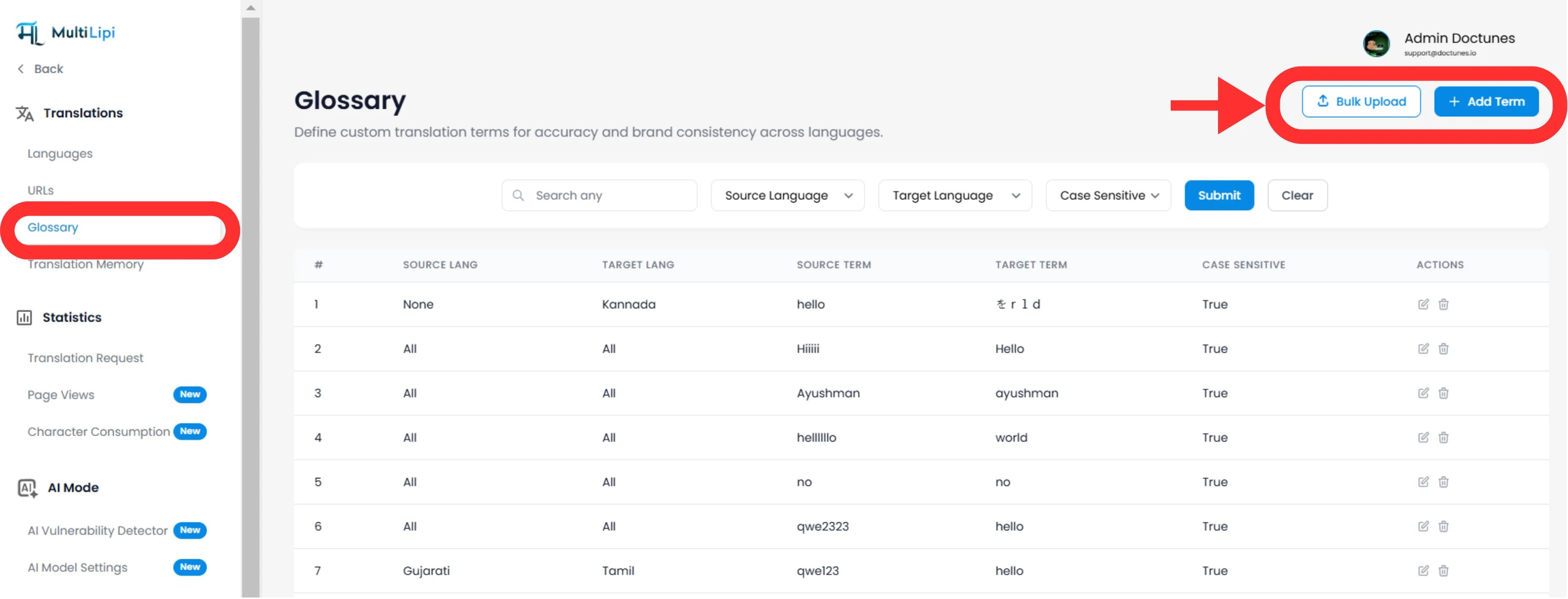
Naviguer : Depuis votre tableau de bord MultiLipi, développez le Traductions menu dans la barre latérale.
Sélectionner : Cliquer Glossaire.
Vue : Vous verrez un tableau consultable de toutes les règles actives, de leurs paires de langues et de leur statut de sensibilité à la casse.
Méthode 1 : Définition de règles de précision (Manuelle)
Idéal pour :
Verrouillage des noms de marque, des SKU de produits et des slogans marketing spécifiques.
Lancer
Cliquez sur le Nouveau bouton dans le coin supérieur droit.
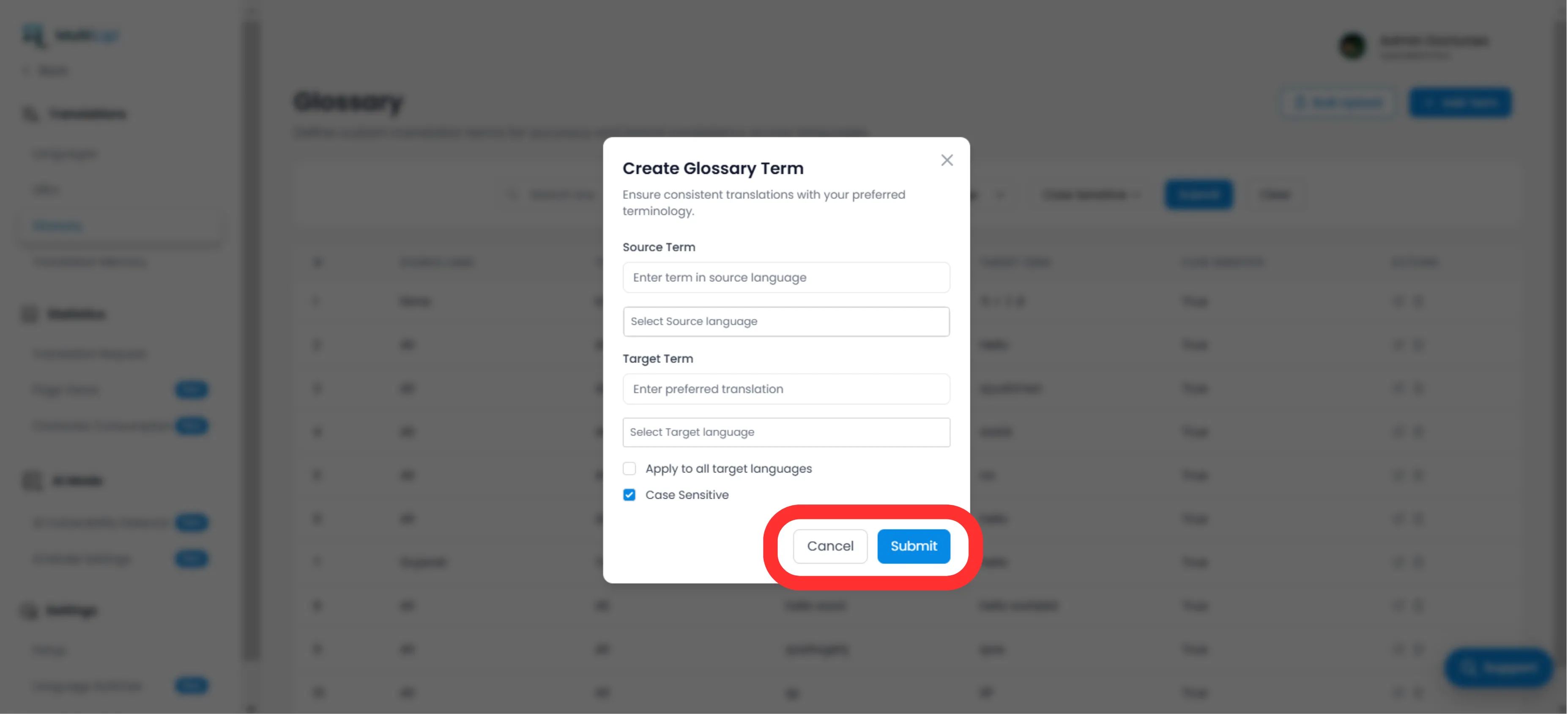
Définir la règle
Terme source
Le mot ou l'expression exact dans votre langue d'origine (par exemple, "CloudDrive").
Terme cible
La traduction obligatoire (par exemple, "CloudDrive" - pour le conserver en anglais, ou "Le CloudDrive").
Portée linguistique
Spécifique
Appliquer uniquement aux EN → FR.
Global
Sélectionnez "Toutes les langues" pour verrouiller un nom de marque dans le monde entier.
Sensibilité à la casse
Activé
Correspondances "Apple" mais ignore "pomme". Essentiel pour les mots courants qui sont aussi des noms propres.
Déployer
Cliquer Soumettre. La règle est instantanément poussé au moteur de traduction et s'appliquera à toutes les traductions futures.
Méthode 2 : Ingestion en masse (importation CSV)
Idéal pour :
Migration de bases de termes existantes, de dictionnaires juridiques ou de listes de produits e-commerce.
Si vous avez des centaines de termes, ne les saisissez pas manuellement. Utilisez notre outil d'importation CSV.
Préparez vos données
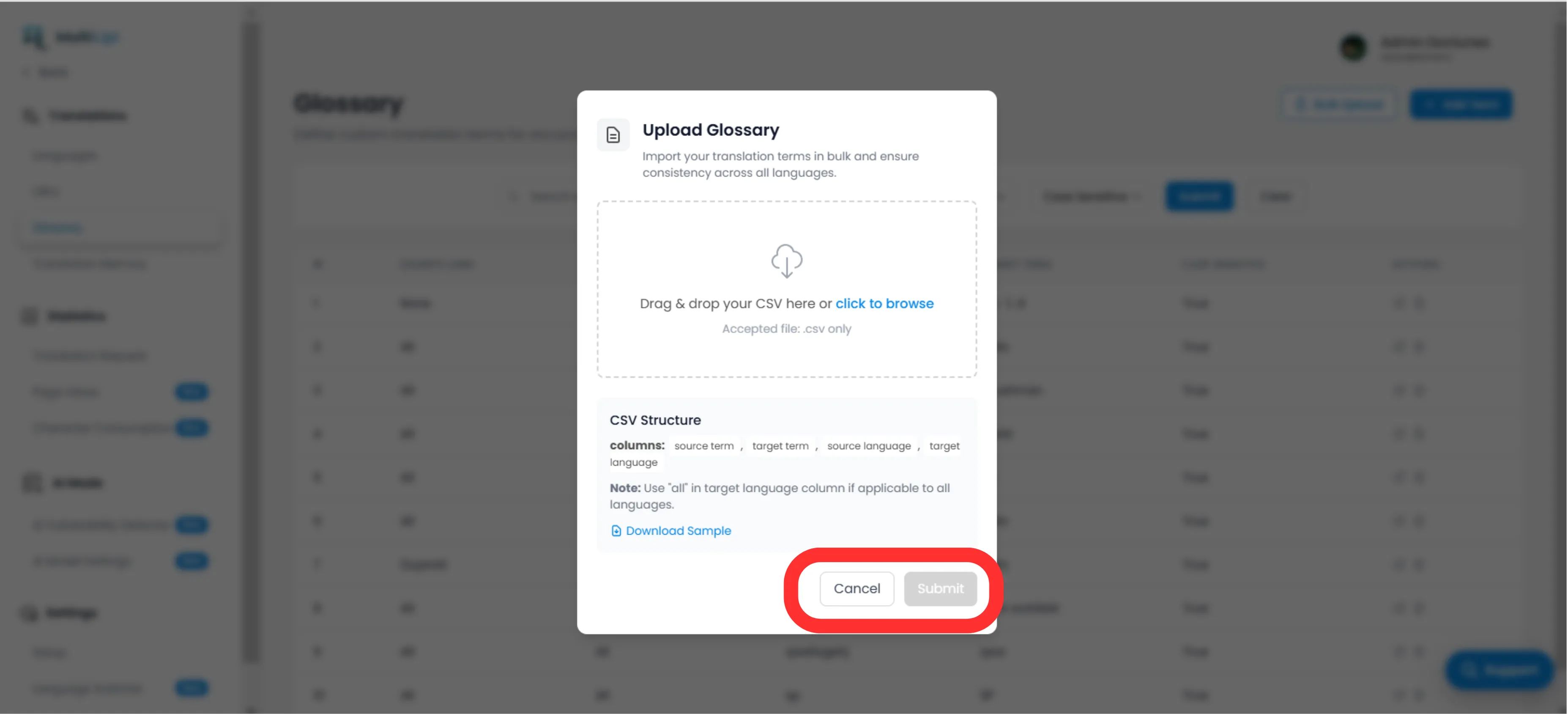
Créez un fichier CSV avec la structure d'en-tête suivante :
terme_source, terme_cible, langue_source, langue_cibleRemarque
Utiliser codes ISO pour les langues (par exemple, en, fr, de). Utilisez tous pour les règles globales.
Télécharger
Cliquez sur le Télécharger bouton dans le panneau Glossaire.
Mapper et Valider
Sélectionnez votre fichier. Le système va analyser les lignes et signalez toute erreur de formatage.
Exécuter
Cliquer Soumettre pour ingérer les règles dans votre base de termes active.
Meilleures pratiques stratégiques
Verrouillez votre marque
La première règle que vous devriez créer concerne votre Nom de l'entrepriseet définissez la cible comme identique à la source et appliquez-la à Toutes les langues.
Mots-clés SEO
Si vous ciblez un mot-clé à fort volume en Allemagne (par exemple, "Pratique" au lieu de "Téléphone portable"), créez une règle de glossaire pour forcer le moteur à utiliser le terme le plus recherché.
Restez concis
Les glossaires fonctionnent mieux pour expressions de 1 à 3 motsNe les utilisez pas pour des phrases entières ; utilisez le Mémoire de traduction ou Éditeur visuel pour cela.
Prêt à garantir la cohérence de votre marque ? Ouvrir le gestionnaire de glossaire et commencez à définir vos garde-fous de traduction dès aujourd'hui.