

Le texte n'est que la moitié de l'histoire. Pour une immersion totale, vos ressources visuelles doivent également parler la langue locale. L'infrastructure de MultiLipi vous permet d'effectuer le remplacement d'actifs (Asset Swapping) en périphérie. Vous pouvez remplacer l'URL source (src) et les métadonnées (alt) de n'importe quelle image en fonction de la langue de l'utilisateur.
Scénario A (Texte dans l'image) : Échangez une bannière anglaise "Summer Sale" contre une bannière française "Soldes d'été".
Scénario B (Pertinence culturelle) : Affichez une image de cricket pour les utilisateurs en Inde et une image de football pour les utilisateurs au Brésil.
Scénario C (SEO) : Traduisez les balises alt invisibles pour garantir que vos images se classent dans Google Images pour les mots-clés locaux.
Ce guide détaille le protocole d'échange d'éléments visuels à l'aide de l'Éditeur Visuel.
1. Le Protocole de Remplacement
Comment injecter des médias localisés.
Ce processus est entièrement effectué dans notre Éditeur Visuel, une interface "Ce que vous voyez est ce que vous obtenez" (WYSIWYG) qui se superpose à votre site en direct.
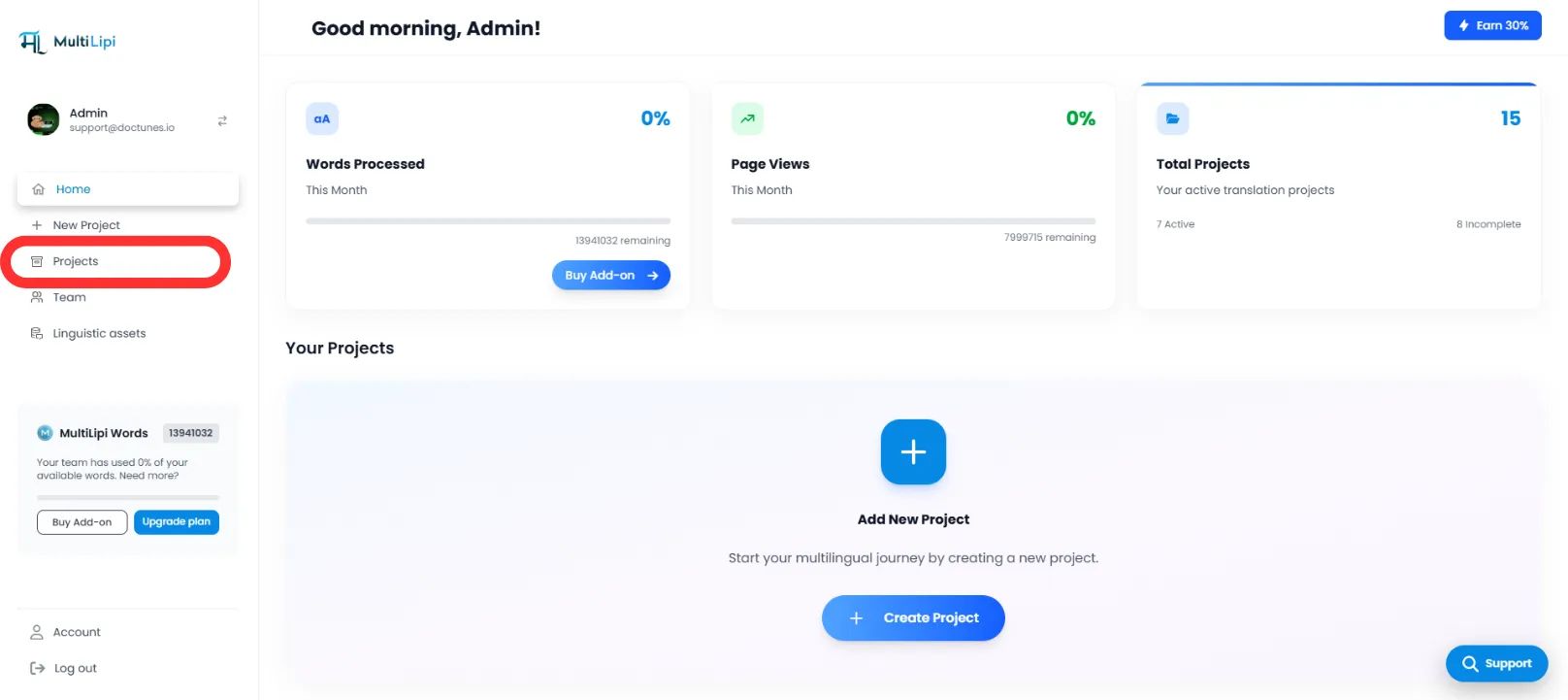
Étape 1 : Accéder au Contexte du Projet
- •Connectez-vous à votre tableau de bord MultiLipi.
- •Accédez à la section Projets depuis la page d'accueil.
- •Sélectionnez le projet de site web spécifique que vous souhaitez modifier.
Étape 2 : Initialiser l'Éditeur
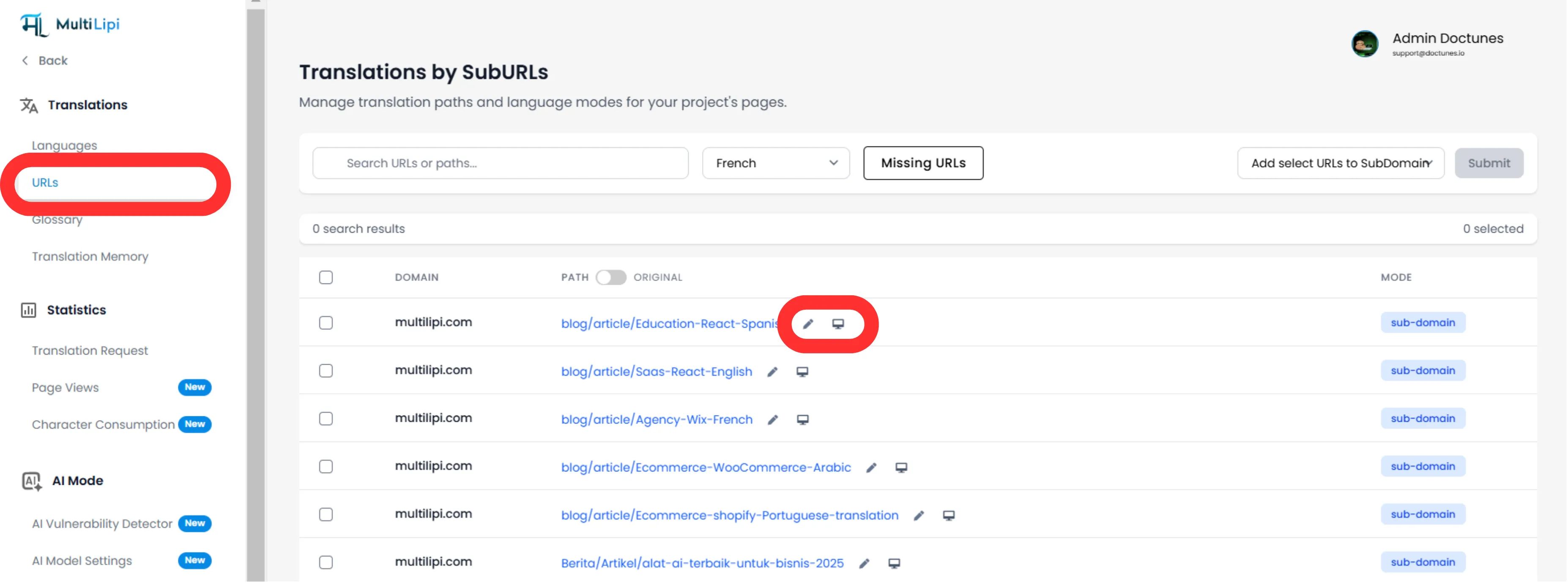
- •Accédez à l'onglet Traductions.
- •Localisez l'URL de la page spécifique (par exemple, /pricing) où se trouve l'image.
- •Action : Sur le côté droit, cliquez sur le bouton Éditeur Visuel (ou l'icône 🖊️).
- •Action du système : Ceci lance un aperçu en direct et modifiable de votre site web dans une nouvelle fenêtre.
Étape 3 : Exécuter le Remplacement d'Actifs
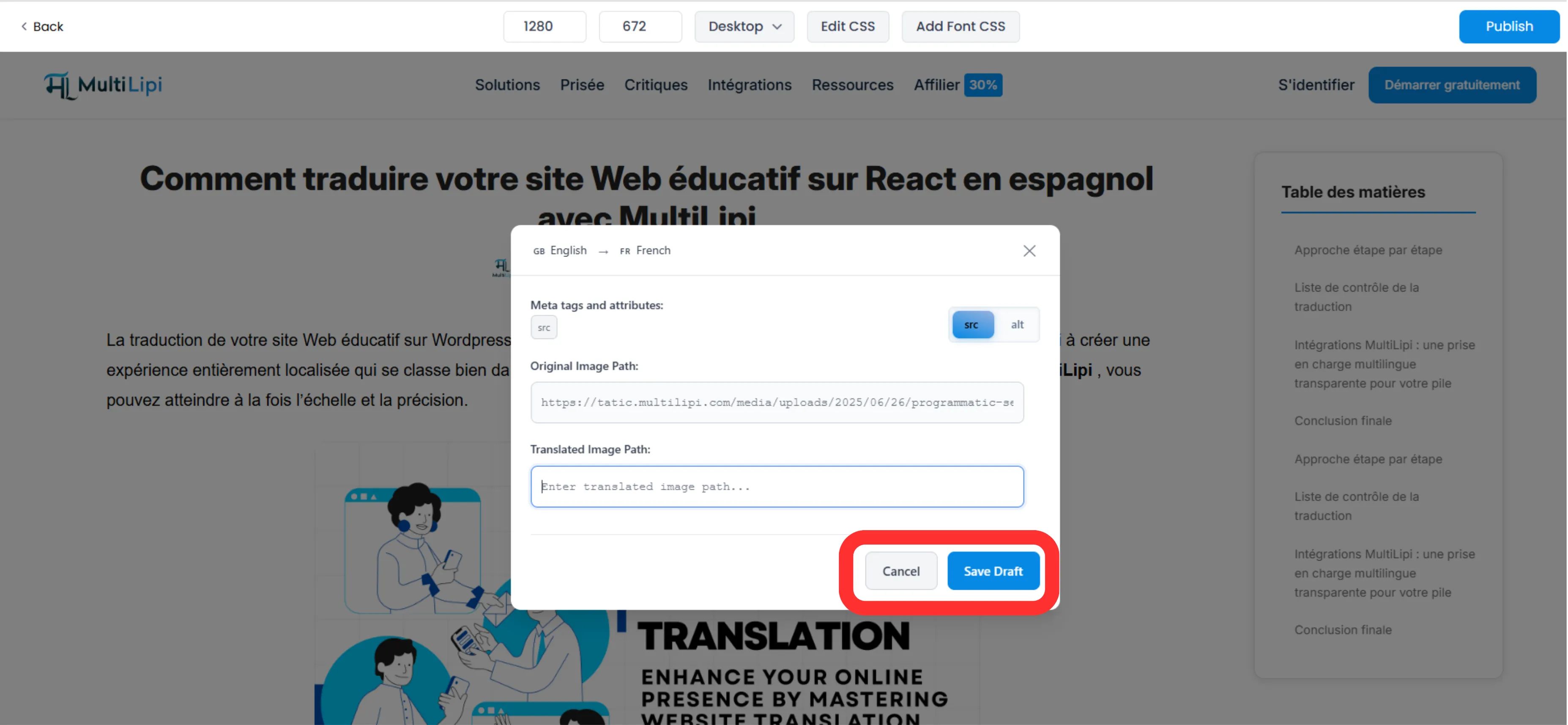
- •Sélectionner : Dans l'aperçu en direct, cliquez directement sur l'image que vous souhaitez localiser.
- •Configurer : Une modale contextuelle apparaîtra avec deux champs modifiables :
Source de l'image traduite :
Collez l'URL complète du nouveau fichier image (hébergé sur votre CDN/Serveur).
Balise alt traduite :
Entrez la description traduite pour l'accessibilité et le SEO.
- •Répéter : Vous pouvez effectuer cette action pour chaque élément d'image sur la page.
Étape 4 : Valider les modifications
Une fois le swap configuré, cliquez sur Enregistrer le brouillon dans la barre d'outils de l'éditeur.
Résultat :
La modification est enregistrée. Lorsqu'un utilisateur visite la page traduite, notre moteur échange dynamiquement l'attribut src du HTML pour charger votre nouvelle image.
2. Avantages Stratégiques
Pourquoi s'embêter à traduire des images ?
SEO visuel : Les moteurs de recherche explorent le texte alternatif. Si votre page espagnole a des balises alt anglaises, vous perdez du trafic. Leur localisation vous aide à vous classer pour les recherches d'images en espagnol.
Taux de Conversion : Les utilisateurs ignorent les bannières qu'ils ne peuvent pas lire. La traduction du texte intégré dans les images promotionnelles améliore considérablement les taux de clics.
Accessibilité : Les lecteurs d'écran dépendent du texte alternatif. La localisation de celui-ci garantit que les utilisateurs aveugles ou malvoyants dans d'autres pays peuvent naviguer efficacement sur votre site.
3. Meilleures pratiques
Hébergement CDN : MultiLipi n'héberge pas vos fichiers image. Vous devez télécharger vos images localisées (par exemple, banner-fr.jpg) sur votre propre serveur ou bibliothèque de médias (Média WordPress / Fichiers Shopify) et copier cette URL dans le champ "Source de l'image traduite".
Longueur du texte alternatif : Gardez votre texte alternatif traduit concis (moins de 100 caractères) pour maximiser l'impact SEO sans être signalé comme "bourrage de mots-clés".