

Faites évoluer votre développement visuel globalement sans code backend.
Webflow est la plateforme de référence pour le développement visuel, mais la localisation native peut être complexe et coûteuse. MultiLipi s’intègre directement à l’architecture de Webflow via une injection de script unique, transformant instantanément vos pages statiques et collections CMS en un Infrastructure multilingue avec indexation SEO complète.
Ce guide détaille le processus d’intégration à l’aide de Webflow Code personnalisé fonctionnalité.
1. Prérequis de déploiement
Avant de commencer, assurez-vous que votre environnement répond aux exigences :
Webflow Site Plan
Tu dois être sur un Plan de site de base (ou plus haut) pour débloquer la fonction « Code personnalisé ».
Clé API MultiLipi
Localisez cela dans votre tableau de bord sous Paramètres > Général .
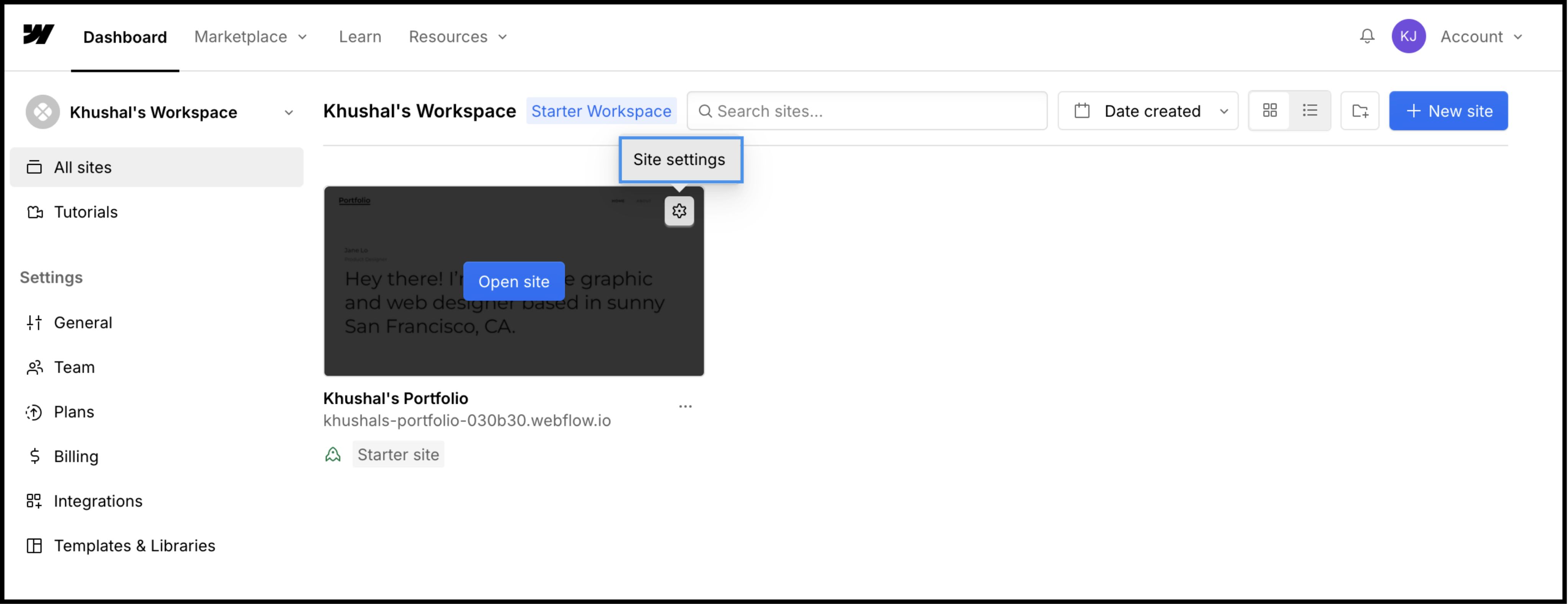
2. Étape 1 : Accéder à l’architecture du site
Nous injecterons le moteur de traduction dans l’en-tête global afin de garantir qu’il persiste sur toutes les pages et les modèles CMS.
- 1
Connectez-vous à votre Tableau de bord Webflow .
- 2
Localisez votre fiche de projet et cliquez sur le Icône de paramètres (⚙️) (ou sélectionner Paramètres du site du menu Designer).
- 3
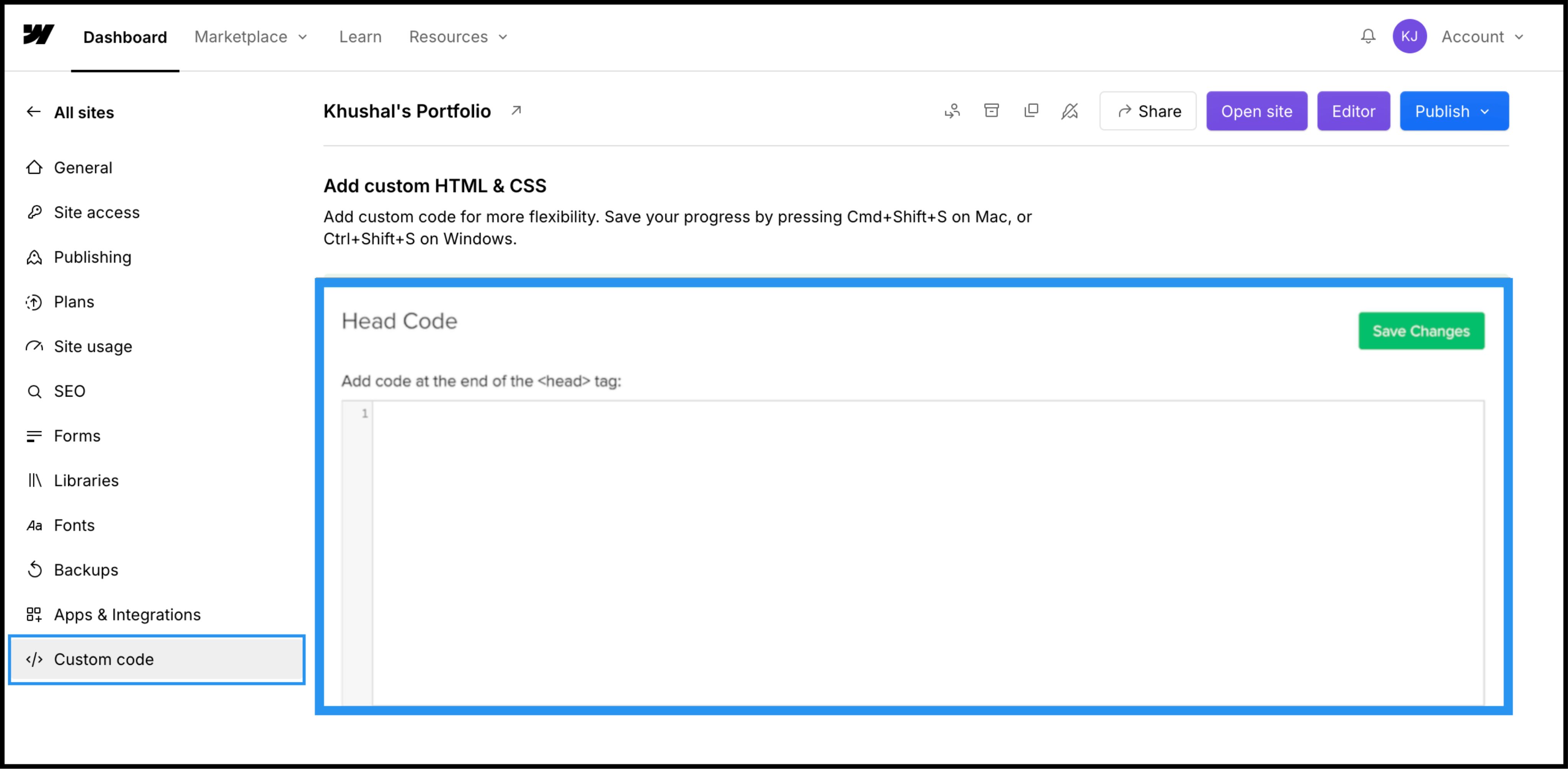
Naviguer vers le Code personnalisé onglet dans la barre de navigation supérieure.
3. Étape 2 : Injecter le script d’infrastructure
- 1
Faites défiler jusqu’au champ indiqué « Code de tête » .
- 2
Note: Ne placez pas cela dans « Code de bas de page », car cela retarderait le chargement de la traduction et provoquerait un « flash de contenu non traduit ».
Action : Coller le script de connexion
Collez le script de connexion suivant dans le champ :
<script
  src="https://multilipistorage.blob.core.windows.net/static/js/page_translations.js"
  key="YOUR_API_KEY_HERE"
></script>
⚠️Configuration critique
- • Remplacer
YOUR_API_KEY_HEREavec la clé API réelle copiée depuis votre tableau de bord MultiLipi. - • Cliquez sur le vert Enregistrer les modifications dans le coin supérieur droit.
4. Étape 3 : Déploiement et vérification
Webflow ne fait pas tourner de code personnalisé dans la vue Designer. Il faut publier pour voir le moteur en action.
Publier
Cliquez sur le bouton bleu Publier et sélectionnez votre domaine de production (ou .webflow.io domaine de mise en scène).
Vérifier
Ouvre le lien en direct.
Vérification visuelle
Le Changeur de langue doit apparaître en bas à gauche.
Vérification CMS
Accéder à une page de collection CMS (par exemple, /blog/post-1 ) et changer de langue pour garantir que le contenu dynamique se traduise correctement.
Protocole de dépannage
- • Manquant un manque ? Confirmez que vous avez publié le site après avoir sauvegardé le code.
- • Vérification du plan : Assurez-vous que votre plan d’hébergement Webflow est actif ; Les sites de mise en scène libres limitent souvent l’exécution de code personnalisé sur des domaines personnalisés.
5. Optimisation et coiffage
Une fois déployé, MultiLipi fonctionne silencieusement en arrière-plan.
Intégrité de conception
Comme nous ne changeons que les nœuds textuels, vos interactions Webflow (IX2) et vos animations de défilement restent parfaitement intactes.
Personnalisation du commutateur
Vous pouvez repositionner le commutateur via nos paramètres du tableau de bord ou surpasser son CSS pour correspondre à la typographie spécifique de votre site.
Automatisation SEO
Nous générons automatiquement le sitemap.xml Entrées et hreflang des balises pour votre projet Webflow, vous assurant de vous positionner dans les résultats de recherche mondiaux sans travail manuel de SEO.